Senin, 19 Januari 2009

Dreamweaver CS3 Tutorial - Test & Upload to Hosting Server

Once the site is complete in Dreamweaver you are ready to upload/ FTP the files to your server and go live. Before that however, you should preview the site in various browsers (at least FireFox and Internet Explorer) to make sure it is working all right.
Preview in Browser

1. File > Preview in Browser > select the browser of choice
2. View each page
3. Click on all the links

Note: If you use Site Relative paths (as you must in server side includes), the "Preview in Browser" feature will not work. You will need to test on a web server locally or upload to your remote hosting server and test.

Other tools that Dreamweaver provides :

* Site > Check Links Sitewide
* Text > Check Spelling

Going Live

After you have developed and tested your site it is ready to go live. You will need to sign up with a hosting server. I recommend Hostgator which I use to host this site.

Once you sign up with a hosting server you they will provide you with your server details:

1. IP address or www.yoursitename.com
2. username
3. password

You can use Dreamweaver or any FTP software e.g. Filezilla to upload your files to the remote hosting server.
File Upload/ FTP in Dreamweaver

To enter your hosting details into Dreamweaver:

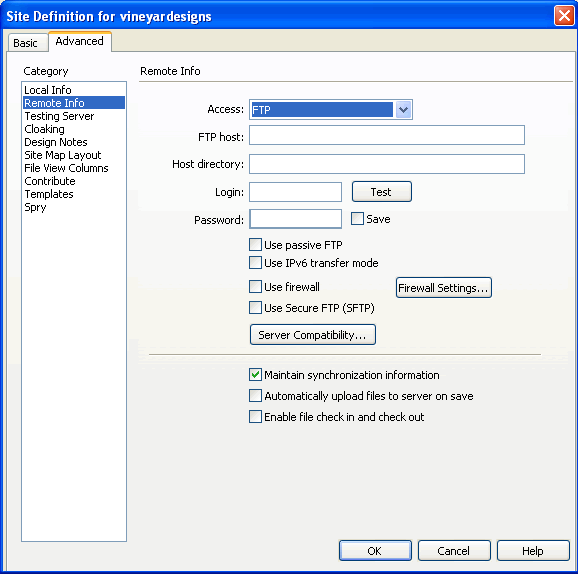
1. Fill in these details in the Remote Info Panel of the Site Definition [Files Panel > Last in the site name drop down - Manage Sites > Select the Site > Click Edit > In the Advanced Tab > Click the category "Remote Info"
2. Access = FTP (from drop down menu)
3. FTP host = enter your site url e.g. www.yoursitename.com
4. Enter your login and password
5. Click "Test" to check the connection


To upload your files into the remote hosting Server:

1. Click the "Expand to show local and remote sites" icon expand to show local and remote sites in the Files Panel

Expand to show local and remote sites
2. In the expanded files panel click the 'connects to remote host' icon.
3. Once you connect you should see the remote folder and files on the left window.
4. To upload your files click the 'Put Files' Arrow icon in the site manager.
5. After uploading all the files test the site online using your site url e.g. www.yoursitename.com.


Your site is live now! Congratulations!

Linking Pages in Dreamweaver CS3

Once you have created all the pages of your site it is time to link them up using Dreamweaver. You may link them from the menus and from appropriate textual or image content on other pages.

To create a link:

1. Select the text/ image you want to link from
2. Click on the yellow folder icon next to the 'Link' field on the 'Properties' panel.
3. In the dialog box that opens, browse for the web page you want to link to and select it.
4. If you are linking to a page from a Server Side Include, ensure that the link is relative to site.


5. Click OK and your link is ready.

If you have added links into the Dreamweaver Template or Library item, Dreamweaver will ask you if you want to update all the pages. Do so.

Extend Laptop Battery Life

Laptops are more powerful than ever. However, this power comes with a downside, short laptop battery life. The average life of a rechargeable battery is 78 minutes. This short time is based on low to mid range processing activity. If you are a gamer or movie lover, your laptop battery life will be significantly shorter unplugged. Even wireless internet modems will drain your battery by 20% per hour. Never the less, there are simple tweaks that will extend your battery life and provide your PC with better power usage. Remember that the more streamline and efficient your operating system the better your laptop battery life. To improve your computer's performance checkout Ways to Speed UP PC and Clean UP PC tutorial pages. HOT TIP: If you feel that you need to upgrade your laptop battery to a longer lasting one, check out, Laptop Battery Replacements


Step 1: Configure Power Plans

Vista has three pre-set power plans. This a simple step that allows you to control your power options in Windows. Depending on which plan you choose may help you maximize your battery power.

1. In Control Panel; click Power Options
2. Choose a Power Plan.
3. Adjust: Display, Sleep and Brightness

OR

1. In the Task Bar, right click the battery icon.
2. Click Power Options
3. Choose a Power Plan.
4. Adjust: Display, Sleep and Brightness

laptop battery life image 1


Three defined power plans can be further edited to maximize your laptop battery life by clicking Change plan settings located under your plan title. You can manage how your laptop power usage while on battery and plugged in. Try to strike a balance between your usage and the power plans.


Step 2: Control Hardware Power Usage

Your laptop hardware will drastically drain your laptop battery life if not configured correctly. Screens, wireless adapters and USB devices can wreak havoc on your power reserves. However toggling the advance settings of your power plan will allow you to significantly extend your battery life. Here is how:

Tweak Hard Drive Shutdown Times

1. In the Edit Plans Settings window menu(previous steps 1-3), Choose change advanced settings.
2. Click the Hard Disk to expand the settings tree. Choose when the hard drive will shut off

increase laptop battery life

Alter Wireless Adapter Performance

1. In the Edit Plans Settings window menu(previous steps 1-3), Choose change advanced settings.
2. Click Wireless to expand the settings tree. Choose the power plan that suits you


Step 3: Cut Down on Background Programs

When you start your computer many unnecessary processes are loaded. All these program require your hard drive to be active thus killing your laptop battery life You can eliminate this by managing your msconfig.

Here is how:1. Open your Start menu.
2. Click Run
3. In the command screen type "msconfig.exe"
4. In the system configuration utility,click either service or startup tab.
5. Uncheck all programs that your are no longer want to run in the background.
6. Click OK
For a list of programs that you don't need and tips on speed up your startup, click this link

Cleaning your Registry- A corrupted registry can have thousand of registry keys that your hard drive will have to keep active. You should perform a Scan Of Your Registry. If you receive more than 30 errors, this is the reason why you have slowdown. Extend laptop battery life by using Registry Cleaners to eliminate useless keys that keep hard drives active.

Step 4: Use Hybrid Sleep

Hybrid sleep acts as a combination of hibernation and sleep. This feature was originally designed for desktops. However, this option can also be very beneficial in laptops. It works by making a snap shot copy of all the programs that are open on your PC. This image is sent to the hard drive. This is a better option than sleep because it drains less of your battery than Sleep option. This works by putting a hold on activity of the programs that are opened. Here is how:

1. In the Edit Plans Settings window menu(previous steps 1-3), Choose change advanced settings.
2. Click Sleep to expand the settings tree. Choose the Hybrid Sleep
3. Enable Hybrid Sleep options

Cool Mask Effect with Blur

In this tutorial I will show you how the create the above masking effect by using some simple Actionscript 3. You should already have the basic knowledge of Actionscript 3 so that you can follow the tutorial.

Setting up the environment

1. Download an image that you want to apply the masking effect.

2. Create a new Flash Actionscript 3 document. Use the same stage size as the image size.

3. Import the image to the library (File -> Import -> Import to Library).

4. Drag the image to the center of the stage.

5. Convert the image into a movie clip by hitting F8. Name it "Blurred image".

Movie clip

6. Apply blur filter to the "Blurred image" movie clip.

Blur

7. Create a new layer. On the new layer, drag the image from the library to the center of the stage.

8. Convert the image into a movie clip named "Original image".

Movie clip 2

9. Give the "Original image" an instance name of "origImage".

10. Draw a rectangle (only fill color) that is taller than your image. You can select the width yourself. For example my rectanle is 60x333 (this rectangle will be our mask). It doesn't matter to which layer you draw the rectangle onto.

11. Convert the rectangle into a movie clip named "Rectangle Mask". Set the registration point to the top-center.

Rectangle MC

12. Remove the "Rectangle Mask" movie clip from the stage.

13. Linkage the "Rectangle Mask" movie clip to a class named "RectangleMask". Don't worry about the warning that appears.

Linkage

Moving into Actionscript 3

14. Create a new layer for actionscript and type the following.

//Hide the mouse
Mouse.hide();

//maskContainer holds all the masks
var maskContainer:Sprite = new Sprite();

//Set the maskContainer to be the original image's mask
origImage.mask = maskContainer;

//Create a new rectangle mask
var recMask:RectangleMask = new RectangleMask();

//Add recMask onto the maskContainer
maskContainer.addChild(recMask);

//Add the maskContainer onto the stage
addChild(maskContainer);

//Easing factore, used in animation
var easing:Number = 0.1;

//Create a timer that is called every 0.2 seconds
var timer:Timer = new Timer(200, 0);
timer.addEventListener(TimerEvent.TIMER, timerEvent);
timer.start();

//We need ENTER_FRAME for the animation
addEventListener(Event.ENTER_FRAME, onEnterFrame);

//This function is called in each frame
function onEnterFrame(event:Event):void {
//Calculate the speed we want to move the rectangle
var vx:Number = (mouseX - recMask.x) * easing;
//Assign the new x position
recMask.x += vx;
}

//This function is called every 0.2 seconds
function timerEvent(e:Event):void {
//Create a new rectangle mask
var rc:RectangleMask = new RectangleMask();
//Assign it to the same position as our original mask
rc.x = recMask.x;
//Add it to the container
maskContainer.addChild(rc);
//ENTER_FRAME is used to animtate the scale of the mask
rc.addEventListener(Event.ENTER_FRAME, scaleDown);
}

function scaleDown(e:Event):void {
//Get the rectangle mask
var rc:RectangleMask = (RectangleMask)(e.target);
//Reduce scale
rc.scaleX -= 0.05;
//If the scale is below 0, we remove the rectangle mask
//from the stage
if(rc.scaleX < 0) {
rc.removeEventListener(Event.ENTER_FRAME, scaleDown);
maskContainer.removeChild(rc);
}
}

You are done, I hope you enjoyed this tutorial!

Masking Object

Flash Tips

To create a mask, you specify that a layer is a mask layer, and either draw or place a filled shape on that layer. You can use any filled shape, including groups, text, and symbols, as a mask. The mask layer reveals the area of linked layers beneath the filled shape.

If you've never created a mask before, try it by completing the following steps:

1 Create a new movie and rename Layer 1 Masked. On this layer, draw a filled rectangular shape that covers the entire Stage.

2 With the layer selected, create a new layer above it. Name this layer Mask.

A mask layer always masks the layer immediately below it.
3 On the Mask layer, draw a filled oval shape. The filled area will be completely transparent in the mask.

4 Right-click (Windows) or Control-click (Macintosh) the Mask layer name in the Timeline and choose Mask from the context menu.

The layer is converted to a mask layer, indicated by a down arrow icon. The layer immediately below it is linked to the mask layer, and its contents show through the filled area on the mask. The masked layer name is indented and its icon changes to a right-pointing arrow.


To display the mask effect, both the Mask and Masked layers must be locked.

For more information about mask basics, refer to Using mask layers in Flash 5 Help and on page 206 of Using Flash 5. The next section discusses creating a spotlight effect with masks.

CSS tips & tricks

Text shadows


CSS level 3 has a property called 'text-shadow' to add a shadow to each letter of some text. In its simplest form, it looks something like this:

h3 {text-shadow: 0.1em 0.1em #333}

Which adds a dark gray (#333) shadow a little to the right (0.1em) and down (0.1em) relative to the normal text. The result looks like this:

The noak and the barcicle

(As of August 2005, not all browsers fully support 'text-shadow' yet. The above should work at least in Safari and Konqueror.)

Fuzzy text shadow

The simplest form of the 'text-shadow' property has two parts: a color (such as the #333 above) and an offset (0.1em 0.1em in the example above). This results in a sharp shadow at the indicated offset. But the offset can also be made fuzzy, resulting in a more or less blurred shadow.

The amount of fuzziness is given as another offset. Here are two lines, one with a little fuzziness (0.05em) and one with a lot (0.2em):

h3.a {text-shadow: 0.1em 0.1em 0.05em #333}
h3.b {text-shadow: 0.1em 0.1em 0.2em black}

“What do you say?” said the UK

In order to see more clearly

Readable white text

Shadows can make text more readable if the contrast between the foreground and the background is small. Here is an example of white text against a pale blue background, first without a shadow and then with:

h3 {color: white}
h3.a {color: white; text-shadow: black 0.1em 0.1em 0.2em}

Without shadow:

What is in it for me?

With shadow:

With a shovel and some oranges

Multiple shadows

You can also have more than one shadow. In general, that looks rather strange:

h3 {text-shadow: 0.2em 0.5em 0.1em #600,
-0.3em 0.1em 0.1em #060,
0.4em -0.3em 0.1em #006}

I wish wish wish…

But with two well-placed dark and light shadows, the effect can be useful:

h3.a {text-shadow: -1px -1px white, 1px 1px #333}
h3.b {text-shadow: 1px 1px white, -1px -1px #333}

I, Augustus (you know who)

That's extra, of course

This is a bit dangerous, as you can see if your browser doesn't support 'text-shadow'. In fact, the colors of the background and the text in this example are almost the same (#CCCCCC and #D1D1D1), so without the shadows, there is barely any contrast.

Drawing letters as outlines

The two-shadows example of the previous version can be taken even further. With four shadows, letters can be given an outline:

h3 {text-shadow: -1px 0 black, 0 1px black,
1px 0 black, 0 -1px black}

Are you feeling red?

A cat, an apple, etcetera

It is not a perfect outline, and at this time (August 2005), the discussion is still open whether CSS should have a separate property (or perhaps a value for 'text-decoration') to make better outlines.

Neon glow

If you put a fuzzy shadow right behind the text, i.e., with zero offset, the effect is to create a glow around the letters. If the glow of a single shadow isn't intense enough, just repeat the same shadow a few times:

h3.a {text-shadow: 0 0 0.2em #8F7}
h3.b {text-shadow: 0 0 0.2em #F87, 0 0 0.2em #F87}
h3.c {text-shadow: 0 0 0.2em #87F, 0 0 0.2em #87F,
0 0 0.2em #87F}

With a zest of best

There's no no like a better no

Indeed, quite right, Mr M